
A SIMPLE WEEKLY PLANNING GUIDE
How to plan your week
with Tempo.
A weekly plan gives your tasks a place without filling every moment. Here’s a practical way to organise your personal tasks with Tempo’s free online planner.
No ads. No subscription. Create an account to save your plan and open it on your phone or computer.
1. Collect your tasks before you schedule them.
Create a card for each thing you want to do: a walk, a focused study session or a little household admin. Give it a clear title and a realistic duration.
Keep tasks that happen once in One-time until you are ready to schedule them. This is your space for cards that don’t have a date or time yet.
2. Drag your cards into the week.
Choose the week you want to plan, then drag a card from One-time onto a day and time. You can also open a card to choose an exact date and time.
For example, place “Go for a walk” on Monday at 10:00 for 30 minutes. Add a 45-minute study session on Tuesday. Leave gaps between tasks so your plan has room to change.
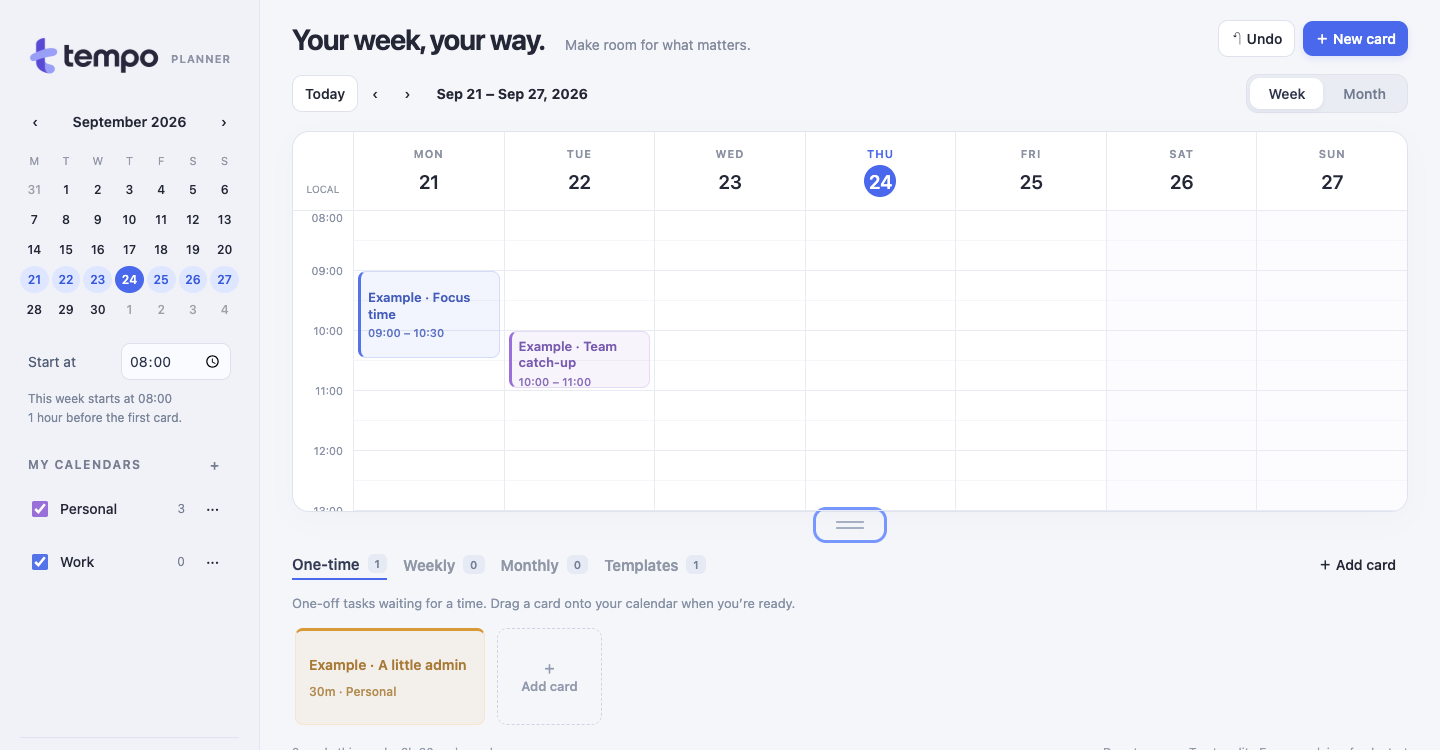
Use separate calendars for personal and work plans, and colours to help distinguish cards. Switch to the monthly view when you want a wider view of your dates.
3. Move unfinished tasks when plans change.
If Monday gets busy, drag your walk to another time or day. You can move a scheduled card back to One-time when you haven’t decided on a new time.
Mark a card complete once the task is done. An unfinished task can be rescheduled; you don’t need to create it again.
Try moving a card in the interactive example →4. Reuse cards for familiar routines.
Use Templates for reusable originals. Drag a template onto your calendar or into a planning shelf to create a copy, keeping the original for next time. You can also duplicate a card.
For a regular routine, use Weekly or Monthly. These create a fresh unscheduled card for each period, which you then place in your calendar. Set an end date if the routine is temporary.
A template is useful for an occasional workout you schedule yourself. A weekly routine suits a regular planning session you want to see again each week.
5. Review your week and keep a copy.
At the end of the week, check what is complete and move anything you still want to do. Keep the next week manageable rather than carrying every task forward automatically.
Your planner saves to your account. Use Export backup to download your own copy, especially before making large changes. Keep that file somewhere safe; importing a backup replaces the planner in your account.